
Documentation Index
Fetch the complete documentation index at: https://docs.coffeerms.com/llms.txt
Use this file to discover all available pages before exploring further.
JD Creation Workflow
This workflow outlines how recruiters manage job descriptions in the RMS.Create JD
- Click Create JD
- Enter:
- Title
- Company
- Category
- Employment type
- Priority
- Description (summary, responsibilities, requirements, skills)
- Save → JD becomes Draft
Edit JD
- Recruiter updates fields anytime during Draft
- Preview and finalize content
- Save updates
View JD
- Click View (eye icon) on any JD
- Opens the full JD details including:
- Title, company, category
- Responsibilities & requirements
- Skills and salary range
- Priority, status, and application stats
- Used for verification before editing, publishing, or closing
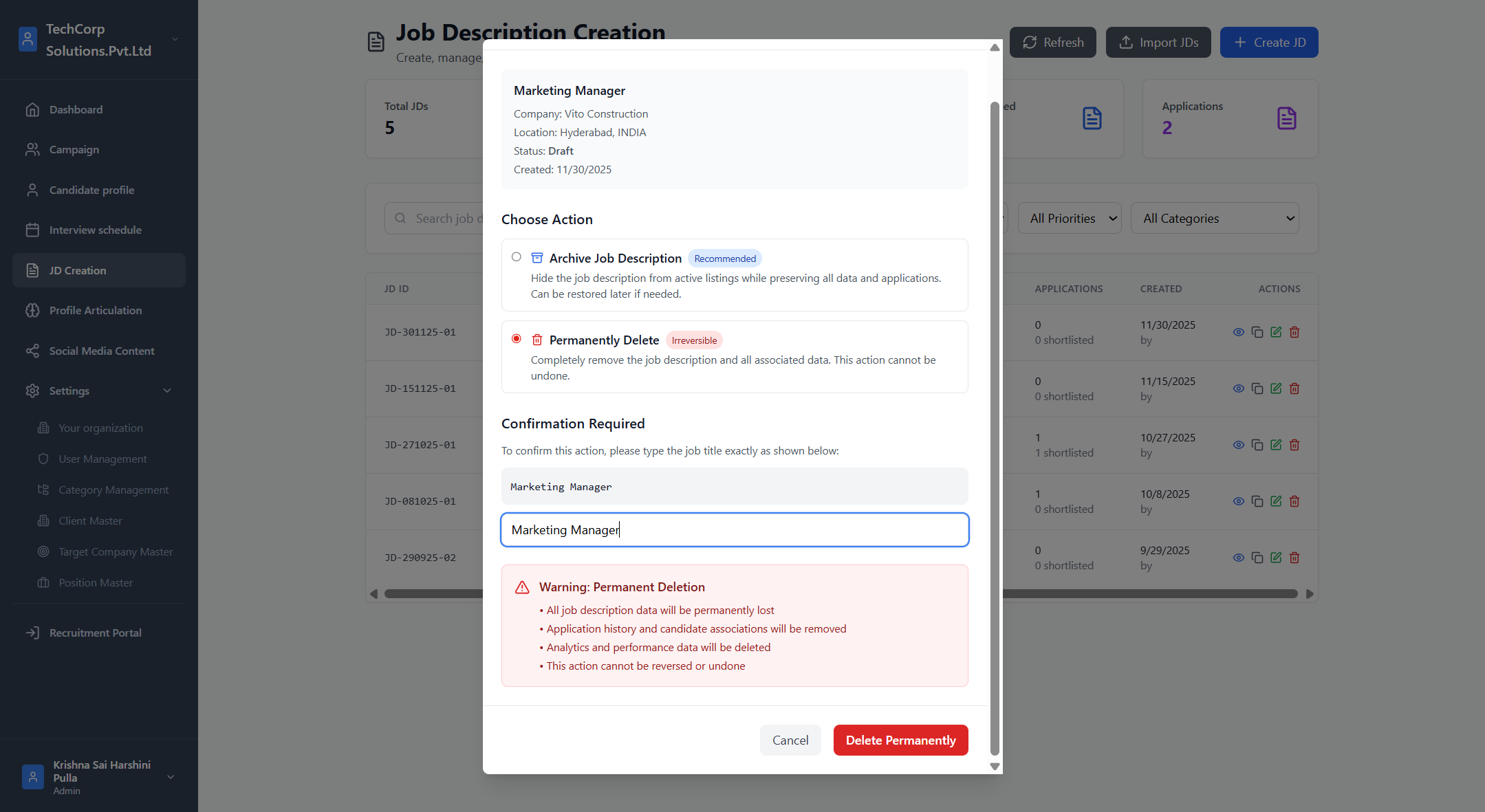
Delete JD
- Click Delete (trash icon) on the JD
- Confirm deletion in the popup
- JD is removed if allowed by permissions and not tied to restricted workflows
- Deleted JDs no longer appear in the list or reporting
Duplicate JD (Optional)
- Click Duplicate
- New JD created with:
- Same structure
- Status = Draft
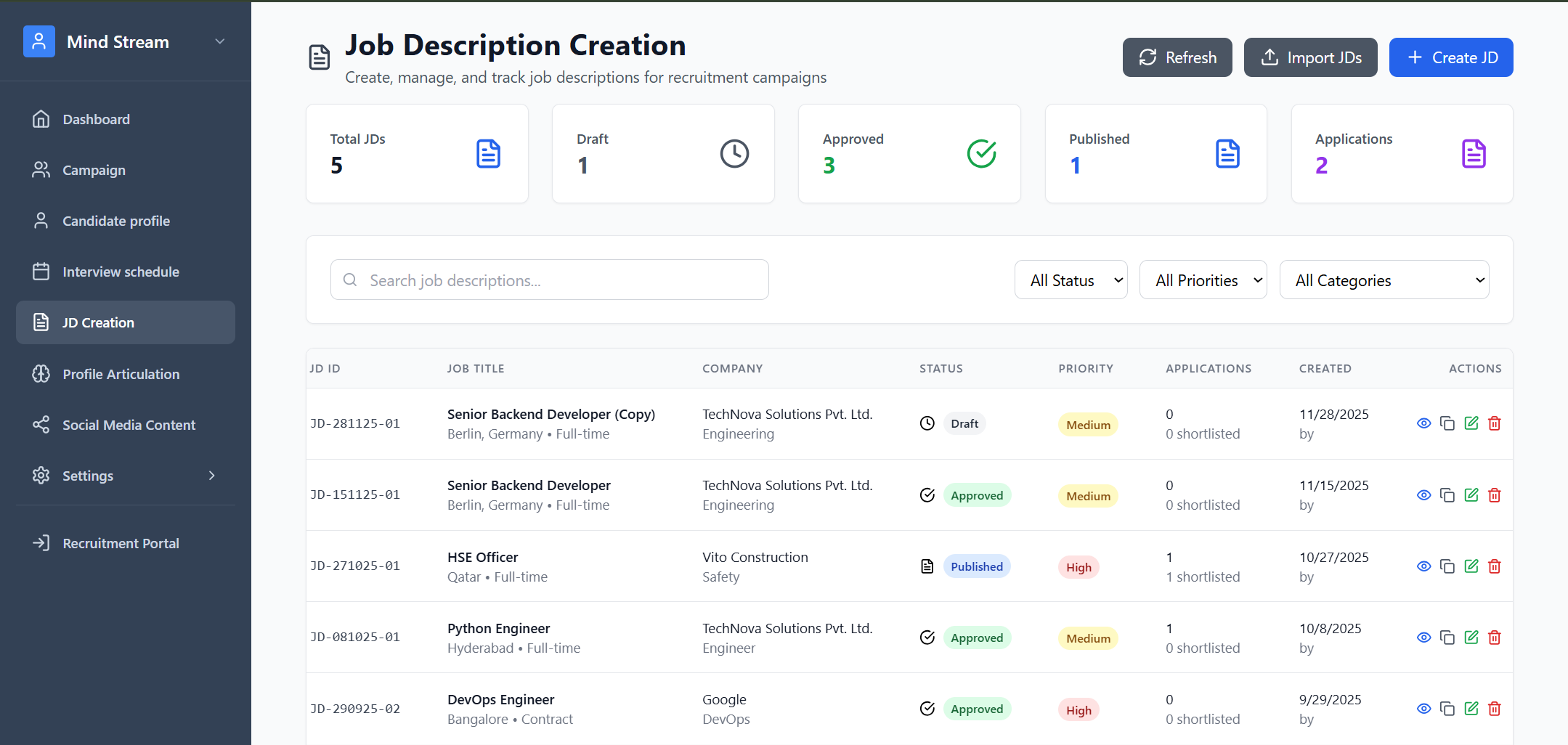
Monitor Applications
Dashboard automatically shows:- Total applications
- Shortlisted candidates
- Priority
- Status
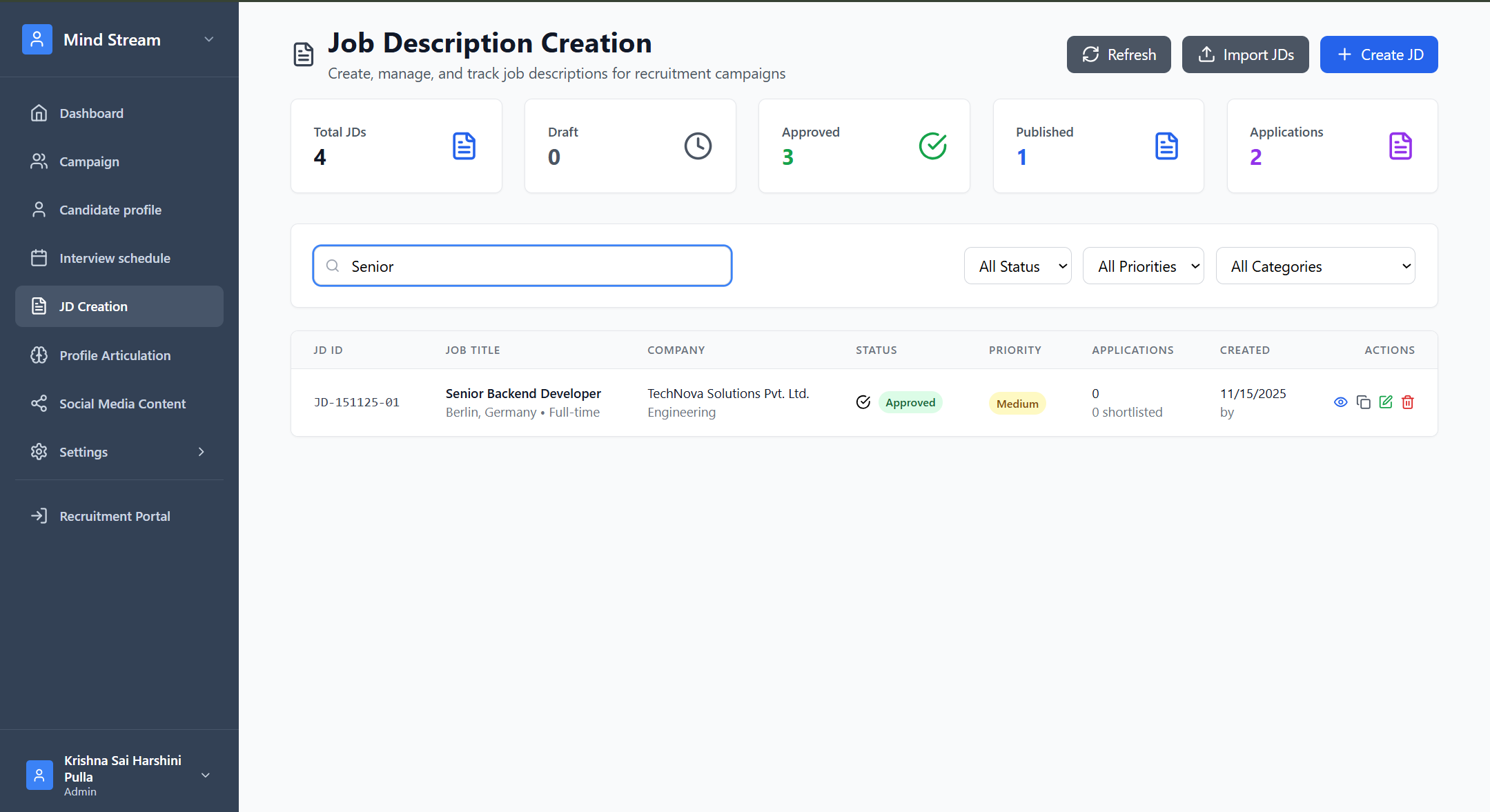
Search & Filter
Search supports:- JD name
- Company name
- Status (All, Draft, Active, Completed)
- Priority (High, Medium, Low)
How JDs Are Used Across RMS
| Module | How It Uses JD Data |
|---|---|
| Profile Articulation | Loads JD details for generating job-specific profile summaries |
| Social Media Content | Post templates use JD title, skills, and summary |
| AI Interview | Pulls formatted JD details from /interview-data |
| Applications | Each application is linked to a JD for tracking |
| Reports | Tracks open roles, aging JDs, application trends |
Summary
- JD module is a core component of the recruitment lifecycle
- Connects with multiple RMS modules
- Supports creation → approval → tracking
- API is RBAC-protected for secure access
- Includes advanced features like duplication & AI interview formatting