
Documentation Index
Fetch the complete documentation index at: https://docs.coffeerms.com/llms.txt
Use this file to discover all available pages before exploring further.
Recruitment Campaign Workflow
This workflow explains how admins and recruiters create, manage, and track hiring campaigns inside the RMS.Workflow Video
Public Candidate Self-Application Form
When a campaign is created, RMS automatically generates a unique public application link.This link can be shared with candidates through email, WhatsApp, job postings, social media, or the client’s website. Candidates can open the link, fill out the application form themselves, and submit it directly into the system.
Public Form Workflow Video
How the Public Application Link Works
1. Campaign is Created
As soon as a new recruitment campaign is saved, RMS automatically generates a public candidate application URL.2. Link Sharing
Recruiters can copy the link and share it with candidates via:- Job Boards
- LinkedIn or Social Media Posts
- Company Career Page
3. Candidate Opens the Form
The candidate sees a structured online application form including:- Basic Information
- Contact Details
- Experience
- Skills
- Resume Upload
- Mandatory/optional campaign-specific questions
4. Candidate Submits the Form
Once submitted:- A new candidate profile is created automatically
- The candidate is linked under the respective campaign’s Candidate List
- Recruiters can immediately begin screening or evaluating
- Pre-screening forms, interview workflows, and evaluations remain the same
5. Recruiter Dashboard Updates Automatically
Recruiters can view:- Candidate details
- Resume
- Public form responses
- Status, rating, and evaluation
- Activity timeline
Create Recruitment Campaign
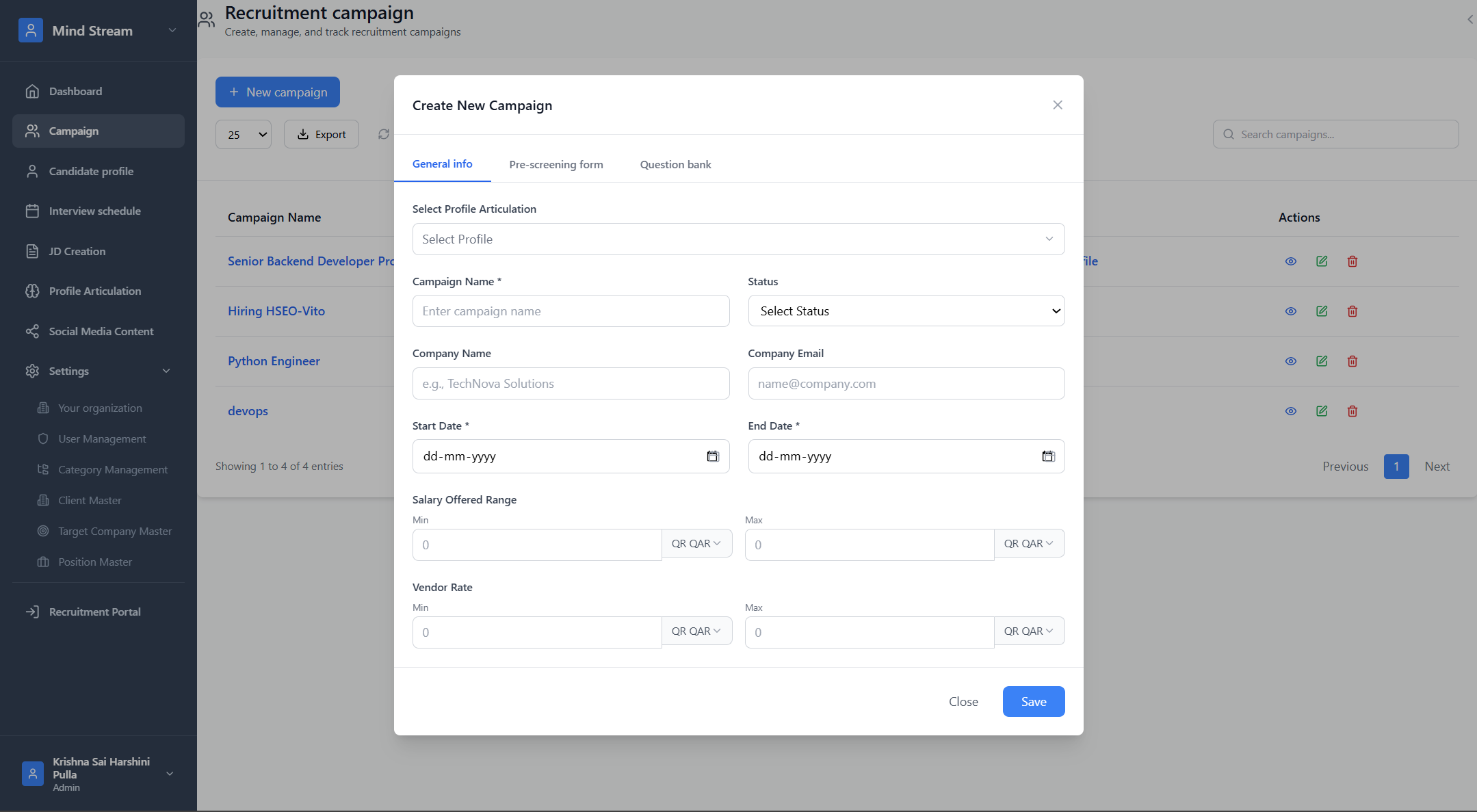
Click New CampaignA. General Info
Fill in the required details:- Select Profile Articulation
- Campaign Name
- Status (Planning / Active / On Hold / Completed)
- Company Name
- Company Email
- Start Date
- End Date
- Salary Offered Range (Min / Max)
- Vendor Rate
B. Pre-Screening Form
Purpose
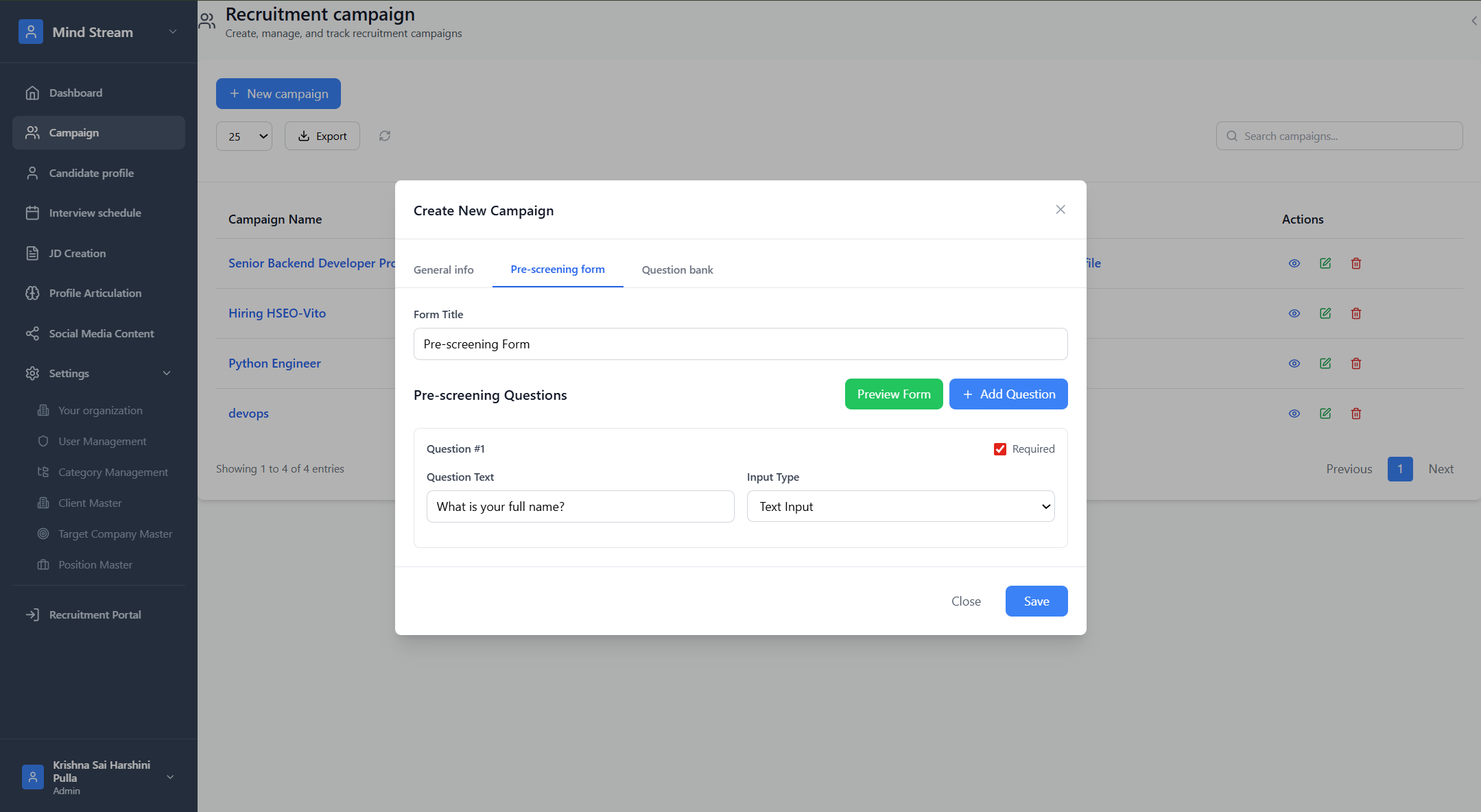
The Pre-Screening Form is the first eligibility evaluation sent to candidates after they are marked Fit.Steps
- Enter Form Title
- Add questions
- Select input type
- Mark required fields
- Preview the form
- Save
System Behavior
After a candidate is marked Fit, the system sends this form link automatically.Their responses appear in:
Campaign → Candidate → Pre-Screening Responses
C. Question Bank
Purpose
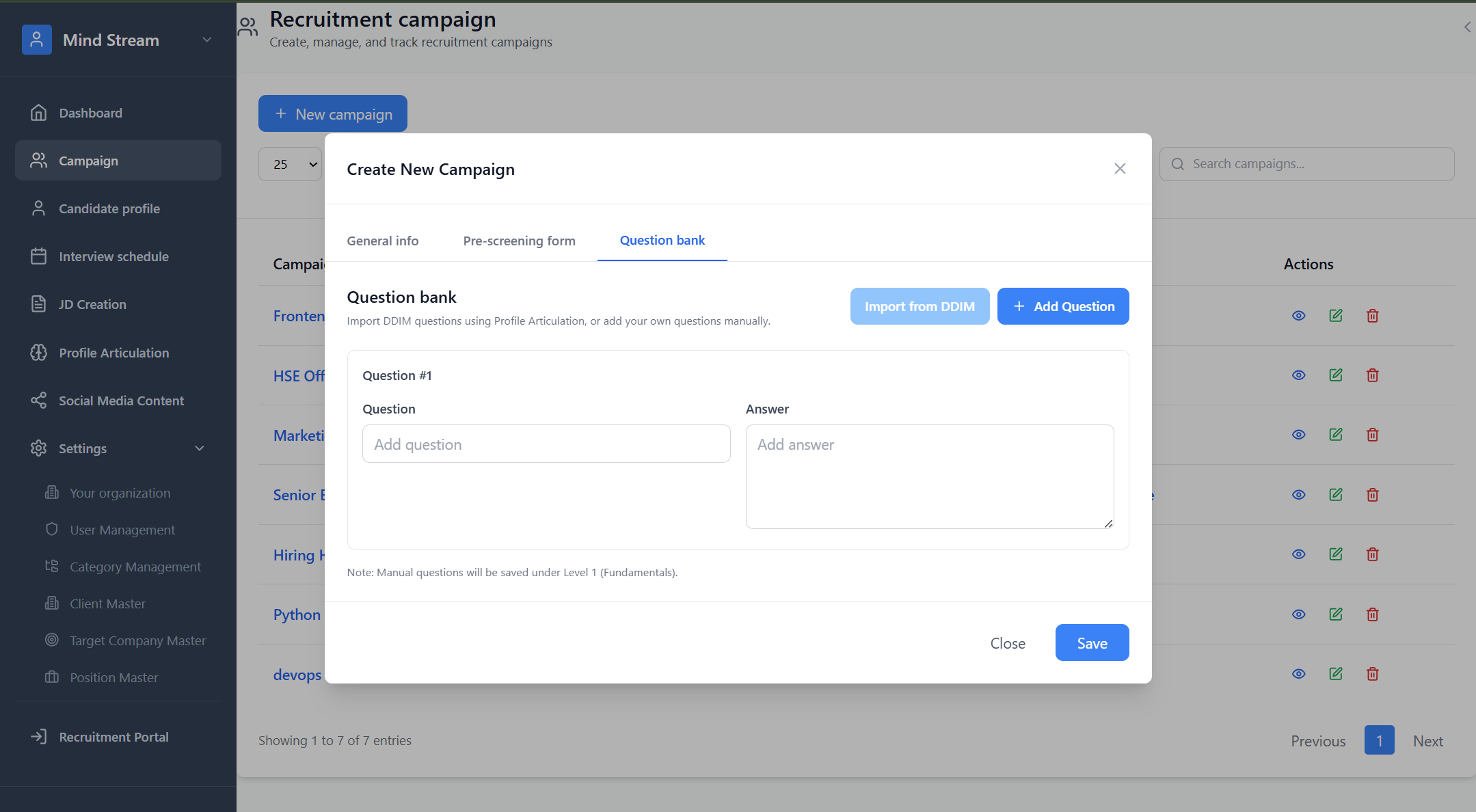
The Question Bank defines the questions used by the AI interview engine to evaluate candidates.Questions can be added manually or imported directly from Category DDIM, ensuring role-aligned and standardized assessments.
Types of Questions Supported
The Question Bank supports two ways of adding questions:1. Manual Questions
Recruiters can manually define custom questions for the campaign.- Click Add Question
- Enter:
- Question
- Expected Answer
- Save Questions
- Client-specific checks
- Custom screening needs
- Role-specific nuances
2. Import Questions from Category DDIM (New)
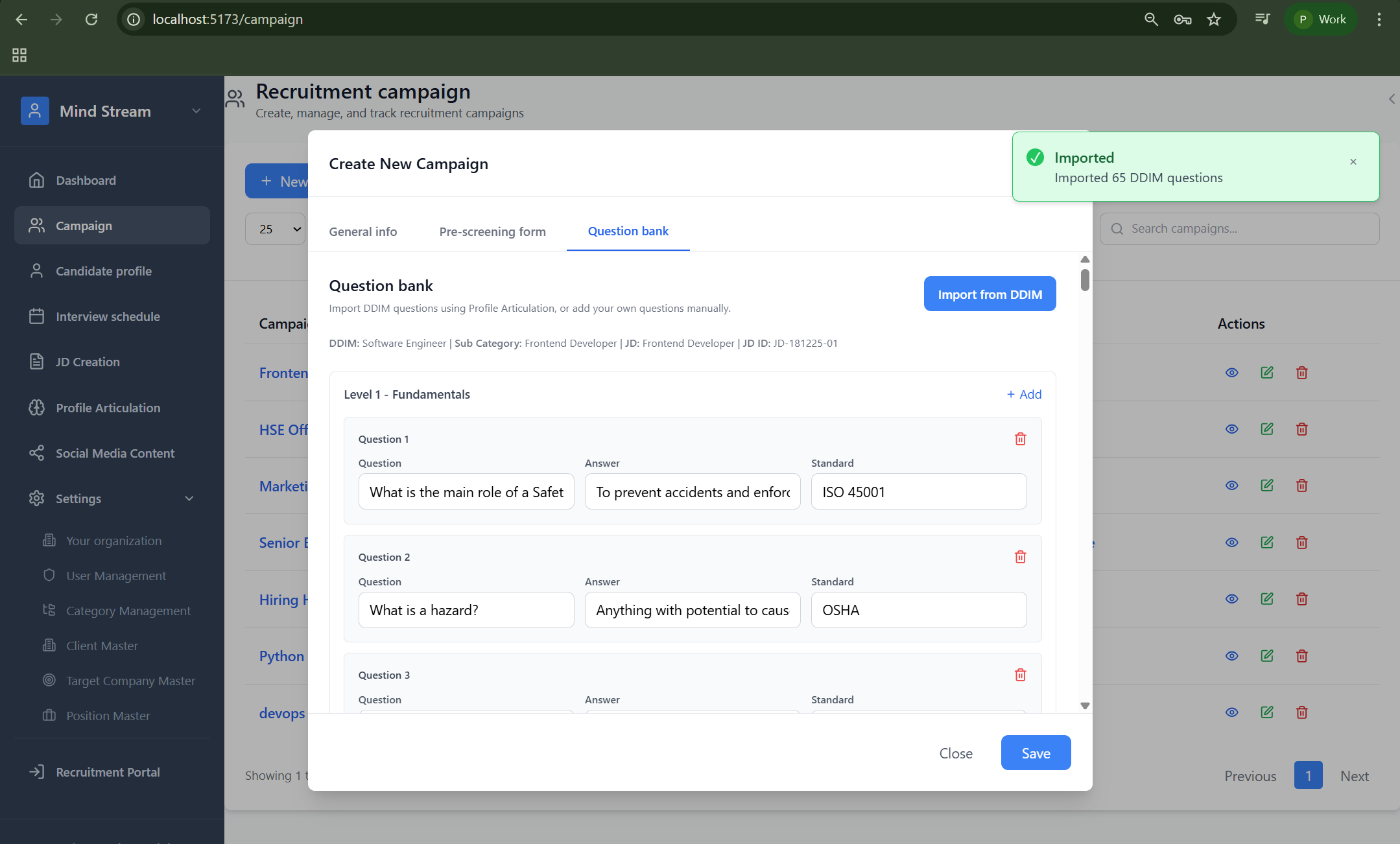
Recruiters can import predefined DDIM questions mapped to the selected Profile Articulation → Category → Sub Category. Steps:- Click Import from DDIM
- System fetches questions from Category DDIM
- Questions are grouped automatically by:
- Level 1: Fundamentals
- Level 2: Applied & Scenario
- Level 3: Expert Diagnostic
- Level 4: Case-Based
- Level 5: Behavioral Competencies
- Imported questions appear instantly in the Question Bank
- Click Save
Example: “Imported 65 DDIM questions”
How DDIM Questions Are Used in Interviews
- DDIM questions imported into the campaign become the primary interview questions
- The AI interview engine:
- Asks these exact questions during interviews
- Evaluates candidate responses against DDIM standards
- Generates structured interview summaries
- Produces fit / no-fit recommendations
- This ensures:
- Consistent evaluation across candidates
- Alignment with role competencies and standards
- Reduced interviewer bias
System Behavior
- Manual + DDIM questions can coexist in the same campaign
- DDIM questions are auto-tagged with:
- Difficulty level
- Competency
- Standard (ISO, OSHA, etc., if applicable)
- Question Bank is reused across:
- AI interviews
- Interview summaries
- Candidate evaluation reports
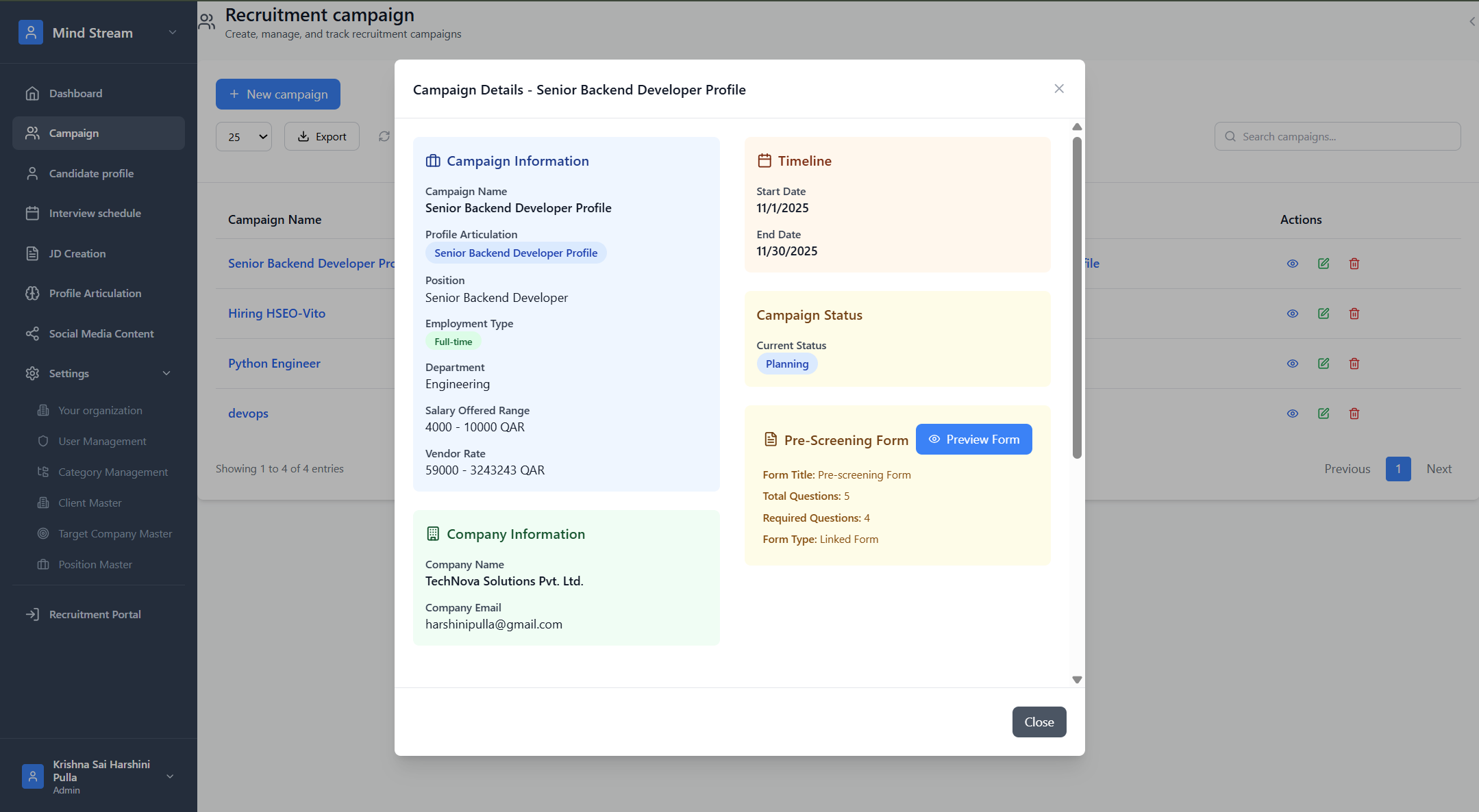
View Campaign
Displays the complete campaign configuration, including:- Profile articulation
- Salary
- Status
- Pre-screening form
- Question bank
- Assigned recruiters
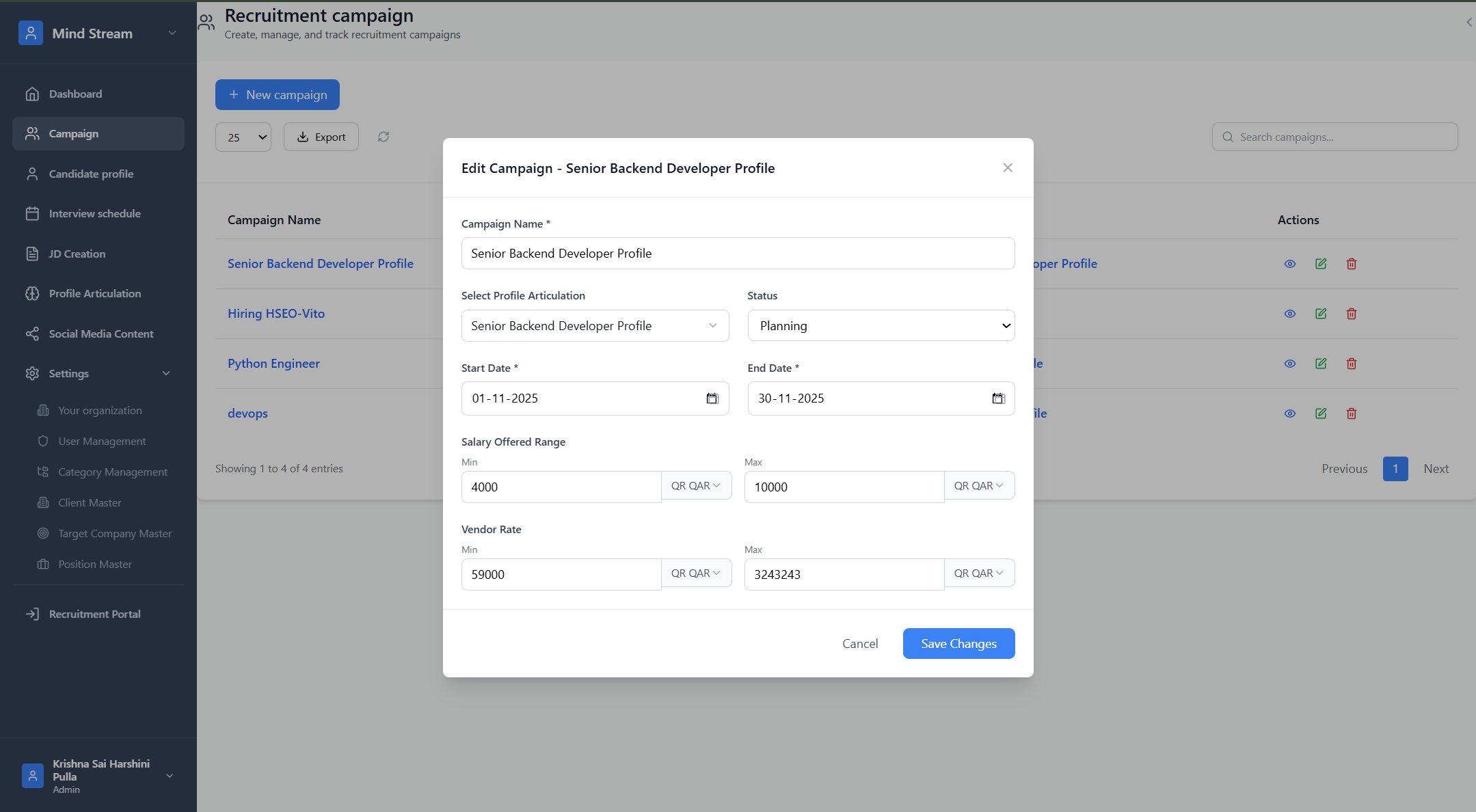
Edit Campaign
Allows updates to:- Status
- Salary
- Timeline
- Company details
- Profile articulation
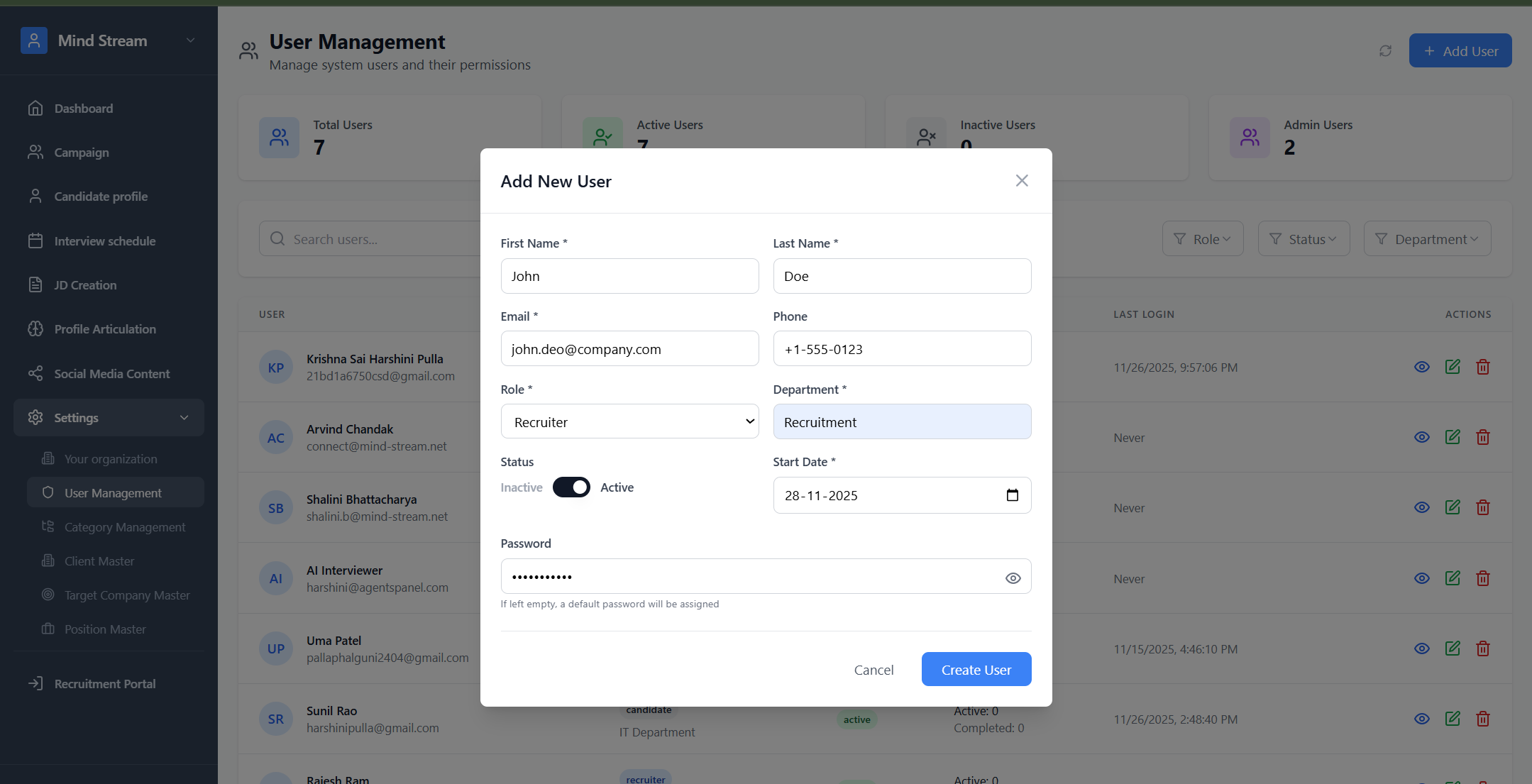
Delete Campaign
- Click Delete
- Confirm the action
- Campaign is removed permanently
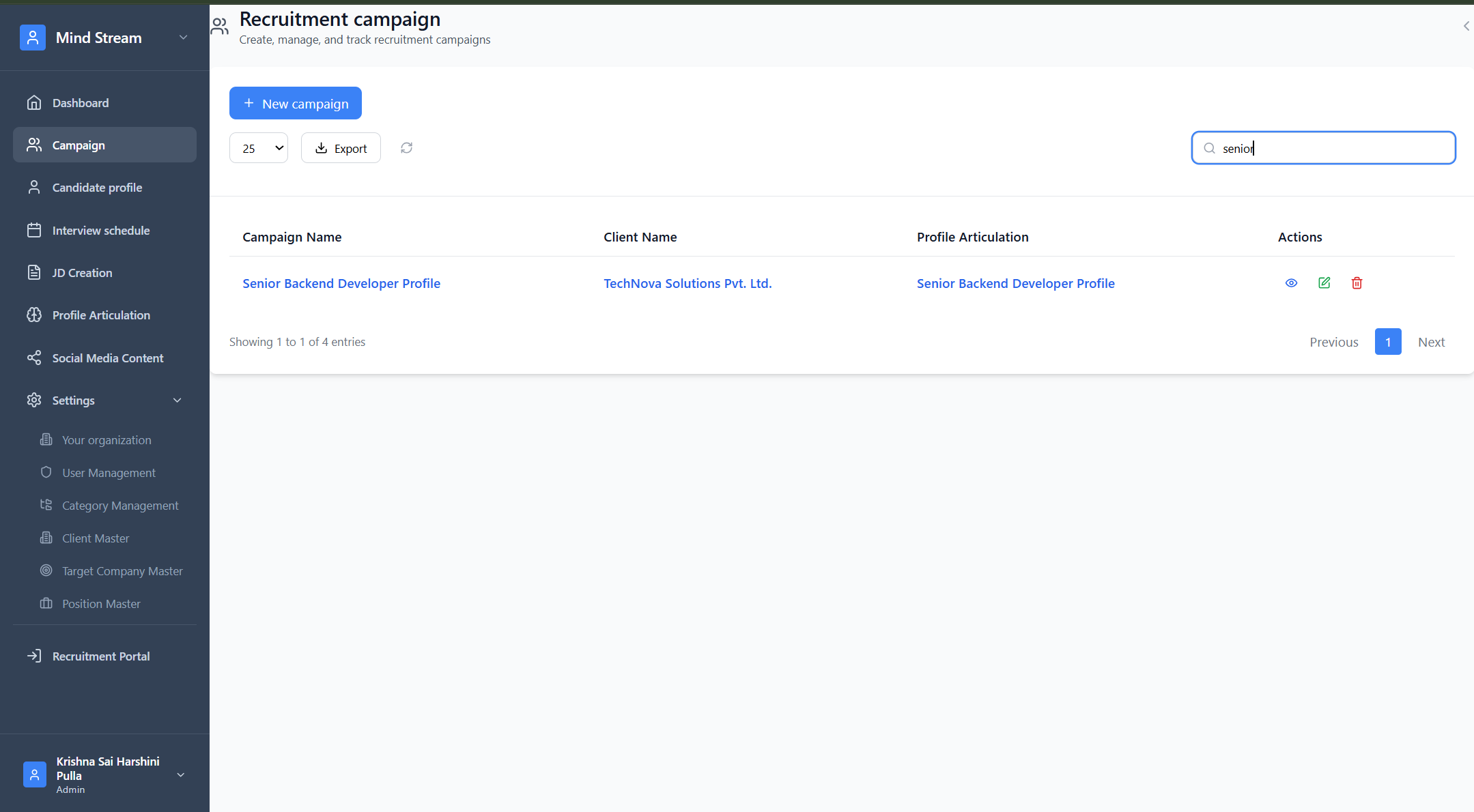
Search and Filter Campaigns
Filter by:- Status
- Client
- Profile Articulation
- Campaign Title
- Campaign name
- Company name
- Profile name
Where Recruitment Campaign Is Used
Recruitment campaigns connect to:- Candidate tracking
- Interview scheduling
- Pre-screening responses
- AI interview evaluations
- Client feedback
- CV approvals
- Representation workflows
Summary
Recruitment Campaign is the central hiring workflow in RMS.Every activity — sourcing, screening, interviewing, evaluation — flows through it. With the introduction of the Public Candidate Self-Application Link, RMS now supports both:
- Recruiter-led candidate intake
- Candidate-driven self-application